
Prepare a digital passport photo for US online renewal
US online passport renewal needs a digital color photo that meets visual rules and file rules—not just any JPEG from your camera roll. Automated checks look at crop, head size, background, and face position before a human ever sees the file. This guide covers what “digital passport photo” means in practice, how to export a clean JPEG, what usually triggers upload rejection, and how digital renewal differs from printed photos. Always confirm current file limits and eligibility on travel.state.gov before you upload.
What counts as a digital passport photo
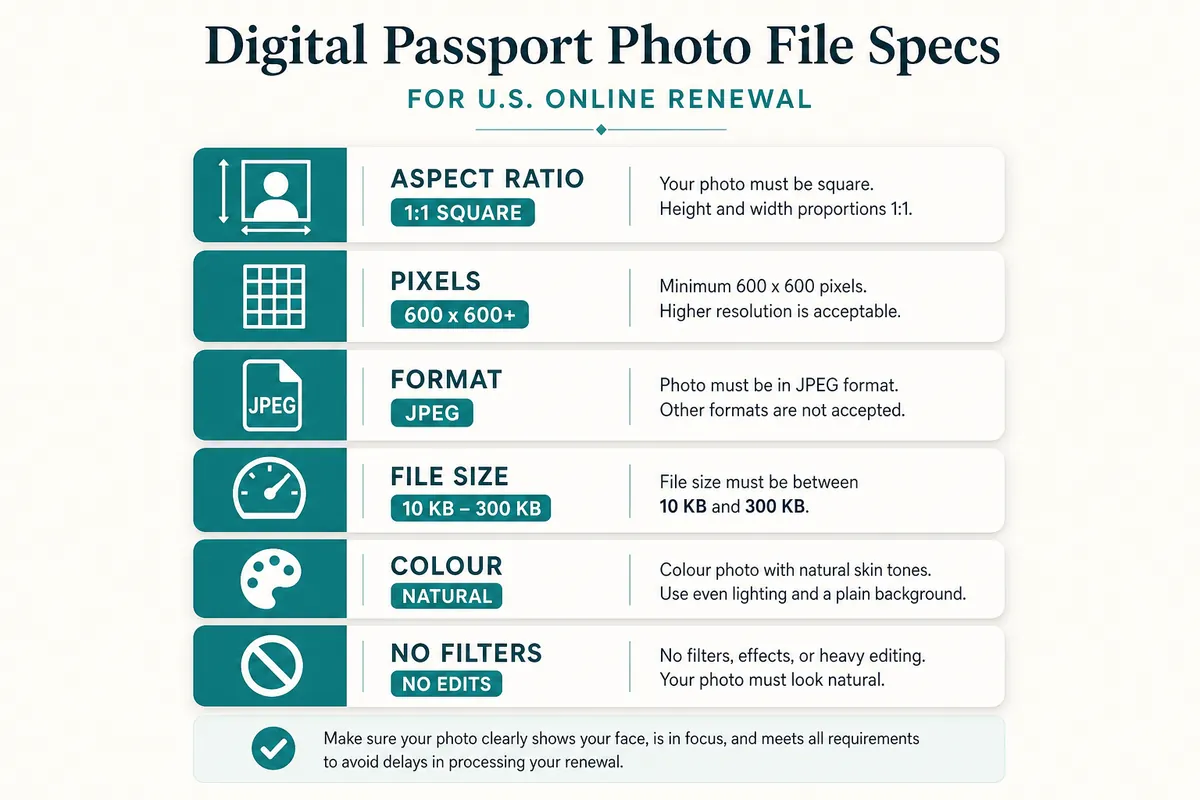
The State Department accepts a color JPEG taken within the last six months (confirm exact timing on the official page). The image must be in focus, evenly lit, and show a plain background with no edits that change your appearance.
Digital rules still mirror the 2×2 inch square look: head size, plain white or off-white background, and a recent photo of how you look now. The online form adds file-type and file-size limits that printed photos do not have.
A store-taken photo can be used digitally if you receive a compliant file. A home phone photo can also work if you crop correctly. Paying a store does not guarantee upload success.
- Square aspect ratio cropped to 2×2 inch proportions
- JPEG format within the upload size limit (check travel.state.gov for current max)
- No filters, AI enhancement, or background replacement tools
- Neutral expression, eyes open, facing the camera
- Taken recently and looks like you today
Automated upload checks (why “fine on my phone” still fails)
Online renewal expanded with automated photo checks. Uploaded files are scanned for square proportions, head size, plain background, and face position. A photo that looks fine in your gallery may fail if the head is too small, lighting is uneven, or the file is the wrong type.
Export a sharp JPEG without heavy compression. Blurry, pixelated, or heavily compressed images cause delays. If your phone saved HEIC, convert to JPEG first, then crop to the correct square ratio.
- Use a recent photo—within the period published for your form
- Crop with head-size guides before uploading to travel.state.gov
- Run a visual checklist before download—do not rely on filters
- If rejected, read the reason and retake rather than editing the same file heavily
Head size and background on a screen
On a digital file, the head should still fall within the official chin-to-crown range once the image is treated as a 2×2 inch photo. A free cropper with an on-screen guide is more reliable than a generic editor that only resizes pixels—shrinking the whole selfie to 600×600 is not enough.
Background should read as plain white or off-white with no shadows. If your wall is slightly gray, improve lighting and reshoot—do not paint the background with editing tools in a way that looks unnatural.
Zoom to 100% before upload. Soft focus, glasses glare, and beauty smoothing that changes skin texture are easier to spot at full size than in a tiny thumbnail.
File type, HEIC, PNG, and size limits
Most online flows expect JPEG. iPhone HEIC and some PNG exports fail silently or with a vague format error. Convert HEIC to JPEG first, then crop. Prefer a moderate quality export that stays within the published kilobyte range without destroying detail.
If the site rejects the file for size, re-export at a moderate quality setting rather than stretching a tiny image. Upscaling a blurry photo rarely passes review.
Keep a backup copy on your device in case the form times out. Also keep the uncropped original so you can try a new crop without quality loss.
- Convert HEIC → JPEG before cropping for upload
- Stay within the official file-size window (verify on travel.state.gov)
- Avoid extreme compression that blocks faces into pixels
- Do not upload Live Photo bundles or RAW files to a JPEG form
Online renewal vs paper application
Online renewal uses one digital file. Mail-in or in-person paper applications usually need two identical printed photos. Do not assume one JPEG covers both paths—check which process you are using and whether you are even eligible for online renewal.
Keep both a cropped JPEG for upload and the uncropped original. If the agency asks for a retake, start from the better source file instead of a tiny export.
Eligibility for online renewal is separate from photo quality. A perfect digital photo will not help if your passport type or status is not eligible—confirm that on travel.state.gov first.
Where to get a digital file
Take one at home with a phone or camera, crop with a US template, and export JPEG. Or ask a store for a digital copy when they take your picture—confirm it is unfiltered and correctly sized before you leave.
Email attachments and messaging apps sometimes recompress images. Prefer saving the file locally and uploading from that copy, not from a heavily forwarded chat image.
- Home shoot → crop → JPEG upload
- Store shoot → request digital file → verify crop → upload
- Avoid chat-app recompression when possible
If the upload is rejected
Read the rejection reason. Common issues: head too small or large, shadows, busy background, glasses glare, wrong file type, or file too large/small.
Fix the underlying problem. Retake when lighting or background is wrong. Re-crop when only head size is wrong. Convert the file when the type is wrong. Do not keep re-uploading the same rejected JPEG with heavier filters.
- Wrong format → convert to JPEG
- Head size → re-crop with guides
- Shadows / busy wall → reshoot with better light and background
- File size → re-export within the published limit
Quick digital checklist
Work the checklist top to bottom before you pay fees. Automated systems are strict about files that look “almost fine.”
- Color JPEG within the form’s size limits
- Square 2×2 look with correct head height
- Plain white or off-white background, no shadows
- Taken within the required recent period, neutral expression
- No beauty filters or AI face changes
- Backup of cropped JPEG + uncropped original saved locally
- You confirmed eligibility and limits on travel.state.gov
Digital photo for visas and other forms
Some visas and other government forms also accept digital portraits, but pixel minimums and backgrounds can differ. Never assume a passport renewal JPEG automatically satisfies a different agency’s upload tool.
For UK or Australian digital submissions, check GOV.UK or the Australian Passport Office. Size and background rules are not the US 2×2 package.
Ready to crop your photo?
Free online tool—pick your country template (US 2×2 or UK 35×45), align your head, and download. No account needed.