Prepare a digital Japan passport photo for online filing
Online Japanese passport pathways need a digital portrait that passes automated and human checks—not only a booth print. Aim for the correct 35×45 framing, a plain background, a neutral expression, and a clean file. This guide covers capture, crop, export, and common upload failures. Always confirm current file limits and eligibility on the official application portal.
What “digital passport photo” means here
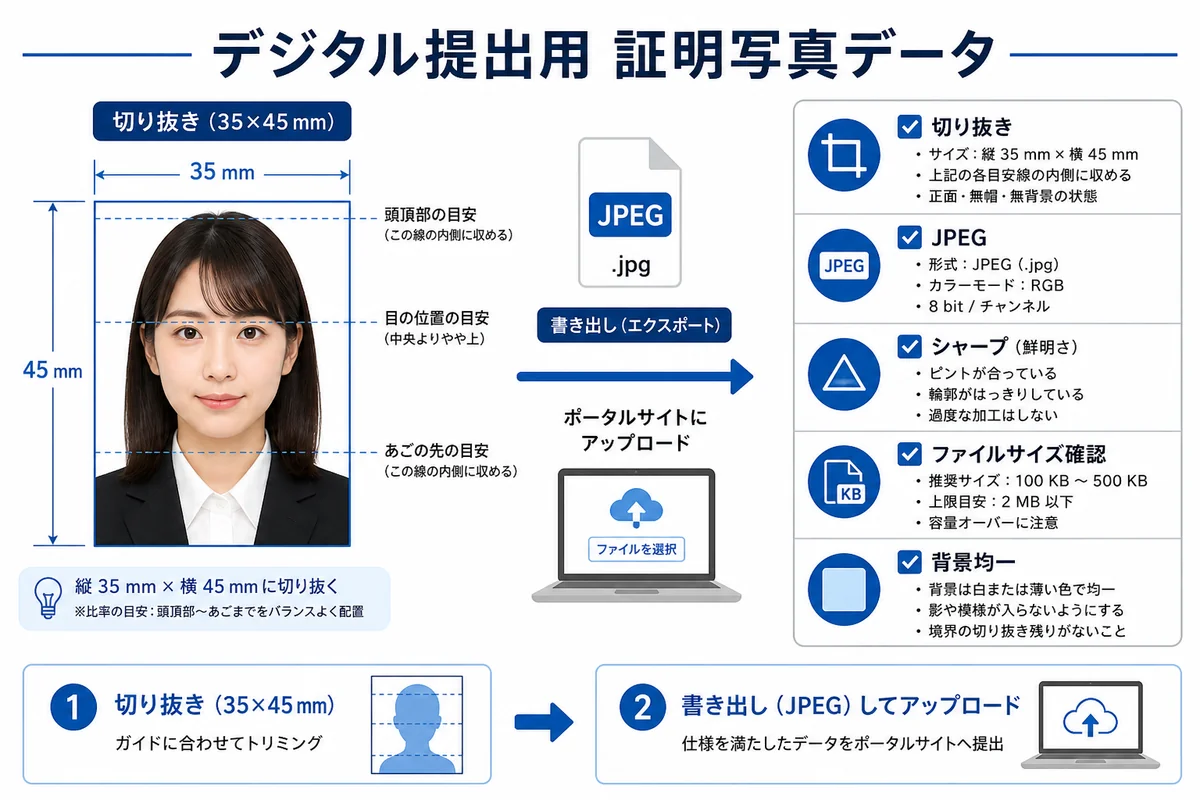
A digital passport photo is a colour file that still obeys the same visual rules as a print: size family (commonly 35×45 mm proportions), plain light background, and a clear face.
Portals may add kilobyte, pixel, or format limits. Those numbers change—read the on-screen help for your application, do not invent limits from blogs.
Booth machines that offer “データ化” can help, but a home crop is fine when lighting and framing are correct.
- Visual rules still apply (background, expression, recency)
- Portal file rules are separate—check officially
- Keep an uncropped original master
- Avoid chat-app compression before upload
Capture for data, not for social media
Use even front light and a plain wall. Turn off beauty modes. Prefer rear camera at eye level.
Shoot slightly wider than the final crop so you can adjust head height without stretching.
If you transfer from a booth USB/QR flow, re-check framing—do not assume the file is portal-ready.
- Beauty mode off
- Even light; no overhead-only shadow
- Master file kept separately
- No AI background replacement
Crop to Japan passport proportions
Use a 35×45 template. Résumé 30×40 files are the wrong aspect—re-crop.
Our browser tool helps you align head guides on-device. Nothing needs to be uploaded to our servers for the crop step.
After crop, zoom the face: eyes sharp, no glare, background clean.
- 35×45 template selected
- Head height inside official guidance
- No stretch from other sizes
- Final review at 100% zoom
Export and upload hygiene
Export JPEG (or the format the portal lists). Avoid saving through multiple messaging apps that recompress the face.
If upload fails, adjust framing or file size using the portal’s own error message—do not repeatedly crush quality.
Eligibility for online filing is separate from photo quality. A perfect JPEG will not help if your case must be filed in person.
- Correct format per portal
- Readable error messages first
- Do not over-compress
- Confirm you are eligible for online filing
My Number vs passport data files
My Number Card uploads use their own face-area guides. Do not assume one JPEG satisfies both passport and My Number without re-checking.
When in doubt, keep separate crops labelled by purpose.
Always prefer official portal meters over third-party summaries.
- Separate files per document type
- Follow each portal’s face guide
- No shared “one size fits all” assumption
Common digital reject reasons
Soft focus, beauty filters, wrong aspect ratio, busy backgrounds, and files that were screenshots of screenshots.
Another trap: uploading a photo that includes other people or reflective glasses.
- Wrong millimetres / aspect
- Filters or face reshape
- Shadows or patterned walls
- Glare on glasses
- Excessive recompression
- Screenshot of a print instead of a clean export
Practical workflow
Shoot → pick sharp frame → crop 35×45 → export JPEG → portal checklist → upload.
- Keep master + cropped copies
- Name files by purpose (passport / résumé / myna)
- Retry framing before crushing quality
- Re-read portal help after any policy update
Checklist
If the portal rejects the file, fix the stated cause first—usually framing or background, not a new hairstyle.
- 35×45 crop aligned
- Plain light background
- Neutral expression; eyes clear
- No filters
- Format accepted by portal
- Recent likeness
- Official instructions rechecked
Tool boundary
Our cropper prepares a compliant-looking file. Application, fees, and identity verification still happen on government systems.
Treat blog pixel numbers as hints only—portal UI wins.
Ready to crop your photo?
Free online tool—pick your country template (US 2×2 or UK 35×45), align your head, and download. No account needed.